Welcome!
This guide will walk you through how to setup Cloudflare and PeerTube together and make them play nice :)
At the time of writing this, I’m setting up a new instance using the domain name peertube.tech. If you see any instance of that domain name, replace it with your own domain.
This guide assumes you are already following the Docker production guide here: https://docs.joinpeertube.org/install/docker. You can tweak the Docker configuration shown here to match a non-Docker based install.
If you want to see the finished product, head over to https://peertube.tech which is my PeerTube instance open to public registrations.
Trust Cloudflare’s proxy IPs
In the .env file, replace the environment variable PEERTUBE_TRUST_PROXY with the following:
PEERTUBE_TRUST_PROXY=["127.0.0.1", "loopback", "172.18.0.0/16", "10.0.0.0/16", "173.245.48.0/20", "103.21.244.0/22","103.22.200.0/22","103.31.4.0/22","141.101.64.0/18","108.162.192.0/18","190.93.240.0/20","188.114.96.0/20","197.234.240.0/22","198.41.128.0/17","162.158.0.0/15","104.16.0.0/13","104.24.0.0/14","172.64.0.0/13","131.0.72.0/22"]
They are Cloudflare IPs and need to be trusted to get the visitor’s real IP address (for IP banning, peer-to-peer, etc).
R2 Object Storage
Cloudflare doesn’t allow you to cache videos in their network unless you pay for their R2 object storage, so we’re going to have to use that.
Note: option names and navigation may change at a later date if Cloudflare changes their UI.
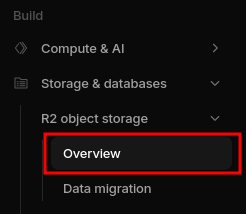
Go to https://dash.cloudflare.com and go to “Storage & databases” > “R2 object storage” > “Overview”.
Create a new R2 bucket. I’ll just leave all the options as the defaults.
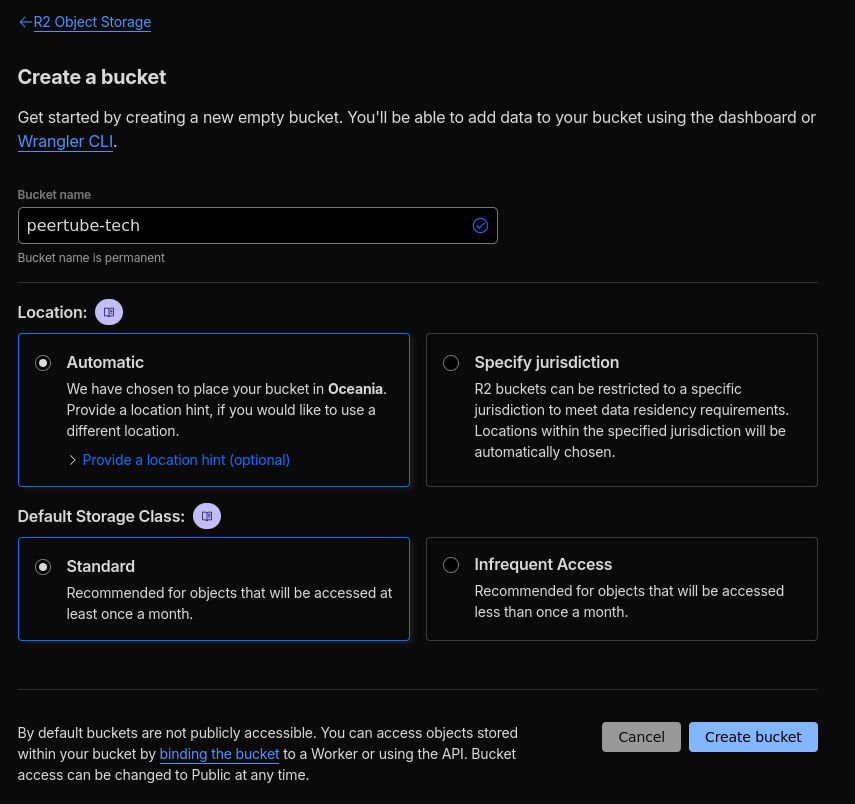
We can’t just go ahead and use this bucket though, because by default Cloudflare doesn’t support content range requests. That basically means that when PeerTube requests a video, it won’t be able to download the video in chunks but instead the entire video which often causes video playback to timeout. This is obviously not great for users.
So, we need to setup our own Cloudflare worker. Lucky for you, I’ve already written all the code necessary to make this work but we’re going to have to setup a new folder on your computer to push to Cloudflare.
Install NodeJS and NPM (the process varies based on your operating system).
If you use NixOS, you can run the following command:
nix-shell -p nodejs
Once you have NodeJS and NPM installed, run the following command. Feel free to change the worker name “r2-worker” to your liking.
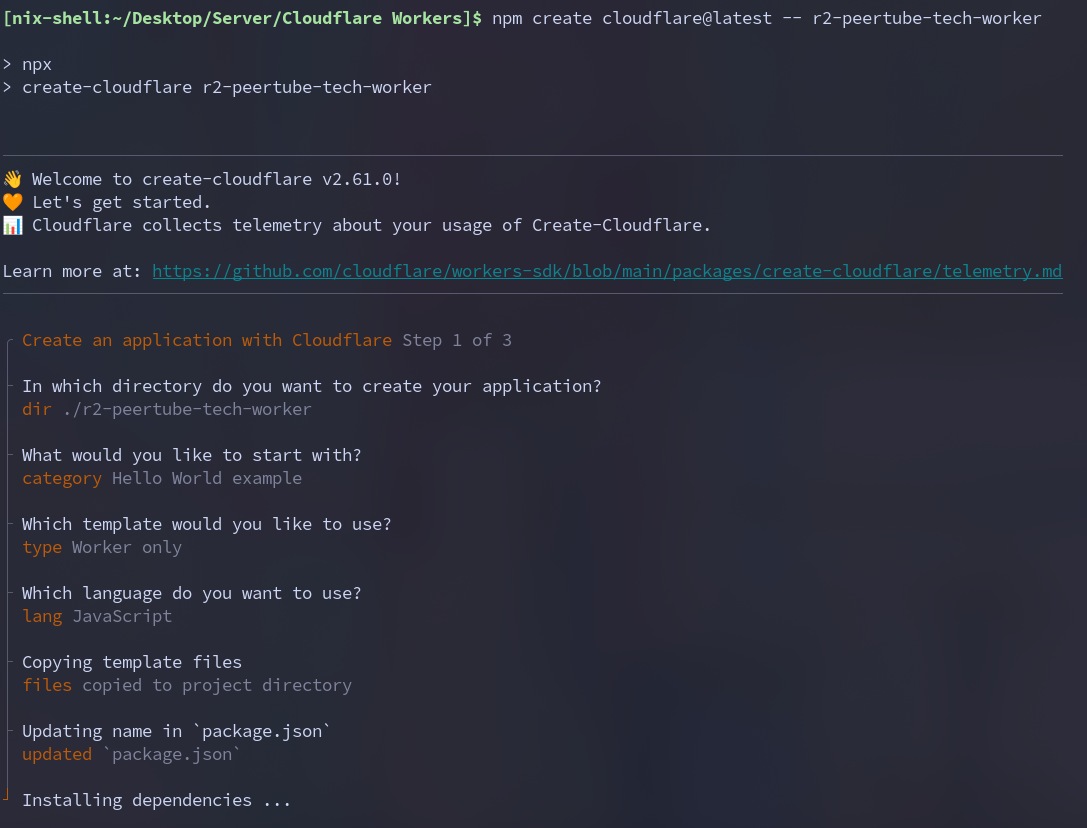
npm create cloudflare@latest -- r2-worker
Then choose the category “Hello World example” and select “Worker only” as the template.
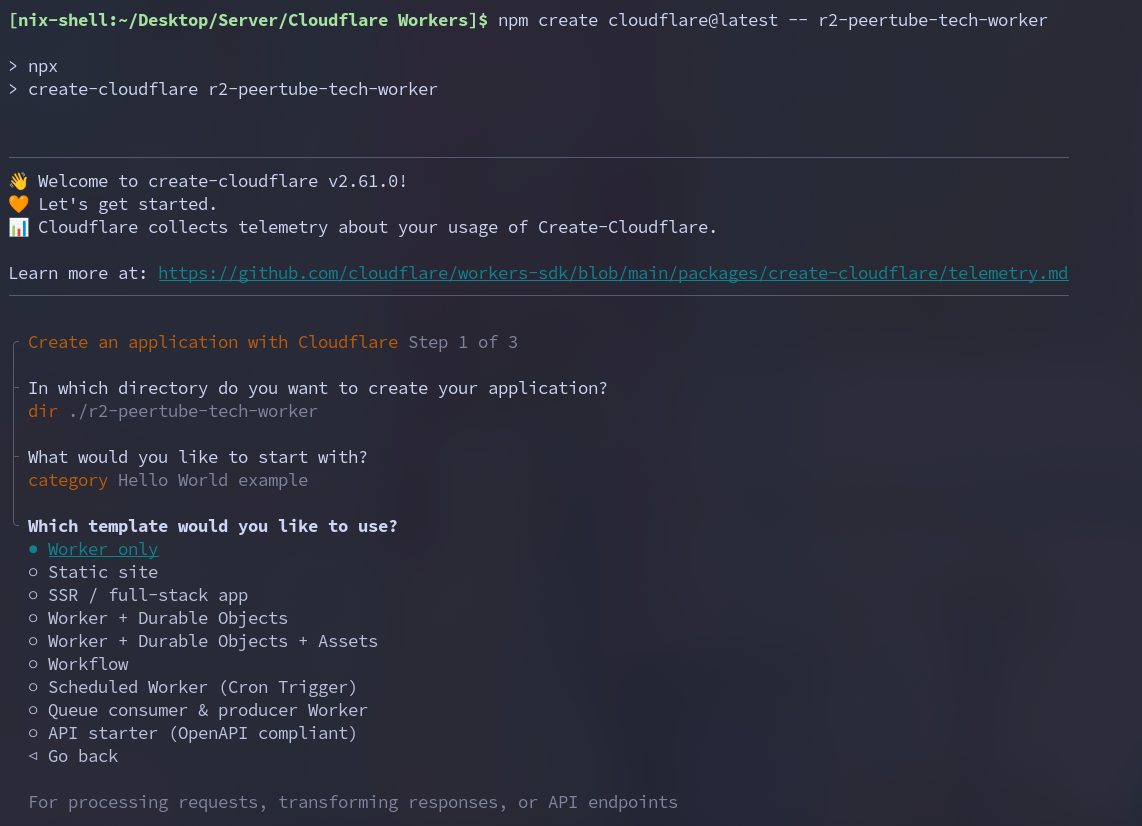
Choose “JavaScript” as the language.
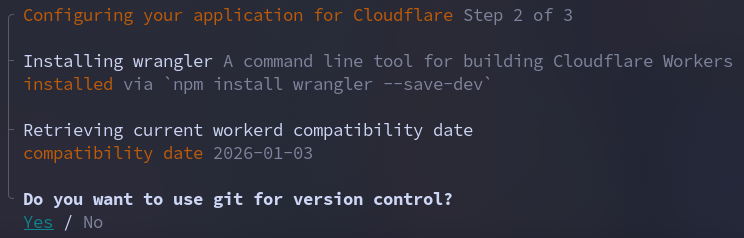
Choose either “Yes” or “No” depending on your preferences. I will choose “Yes” here.
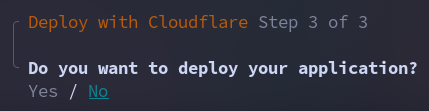
Importantly, select “No” when asked if you want to deploy now.
Navigate to the directory that was just created. It will be the same name that you specified for the previous command.
cd r2-worker
You want to login with your Cloudflare account, so run:
npx wrangler r2 bucket list
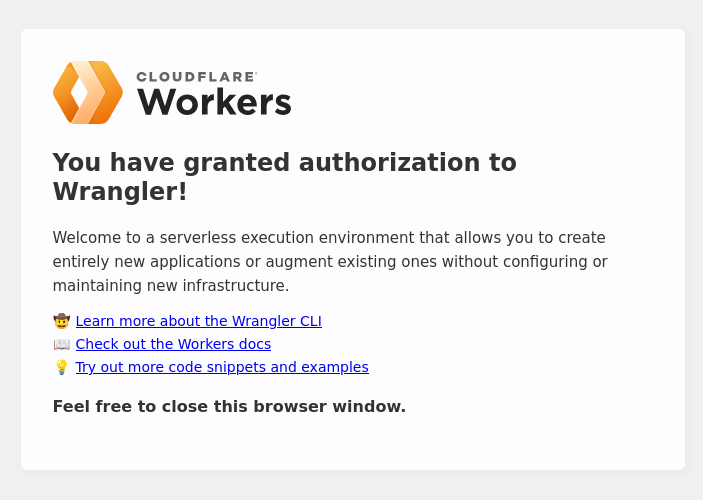
Follow the prompts on the website when it opens. You should be asked to login if you haven’t already and to allow access to the worker.
Edit the file wrangler.jsonc and add r2_buckets and routes below observability. This is what it should look like:
	"observability": {
		"enabled": true
	}, /* <-- THIS COMMA IS IMPORTANT */
	"r2_buckets": [
	  {
		    "binding": "MY_BUCKET",
		    /* CHANGE THIS BUCKET NAME TO MATCH */
            "bucket_name": "peertube-tech"
	  }
	],
	"routes": [
	  {
	    /* CHANGE THIS PATTERN */
	    /* It can't be the same as your PeerTube host name. Notice how I made the name "storage.peertube.tech" and not "peertube.tech". */
	    "pattern": "storage.peertube.tech",
	    "custom_domain": true
	  }
	]
As shown in the comments, make sure to change bucket_name and pattern to equal your bucket name and the domain name of your liking, respectively. The pattern CANNOT be the same as your PeerTube host name, otherwise they will overlap. Notice how I made mine storage.peertube.tech and NOT peertube.tech.
We now need to replace the code of the worker. Edit the index.js file in the src directory.
vim src/index.js
Remove everything. Copy and paste the code below. You do not need to change anything in this file.
export default {
  async fetch(request, env, context) {
    try {
      const url = new URL(request.url);


      const rangeHeader = request.headers.get("Range");
      let options = {};
      let start = 0, end = undefined, fileSize = undefined;
      let partialResponse = false;
      if (rangeHeader && rangeHeader.startsWith("bytes=")) {
        const [startStr, endStr] = rangeHeader.replace("bytes=", "").split("-");
        start = parseInt(startStr) || 0;
        end = parseInt(endStr) || undefined;
	const length = end - start + 1;
	options = {
          range: {
   	    offset: start,
	    length
	  }
	};

        partialResponse = true;
      }

      // Construct the cache key from the cache URL
      const cacheKey = new Request(url.toString(), request);
      const cache = caches.default;

      // Check whether the value is already available in the cache
      // if not, you will need to fetch it from R2, and store it in the cache
      // for future access
      let response = await cache.match(cacheKey);

      if (response) {
        console.log(`Cache hit for: ${request.url}.`);
        return response;
      }

      console.log(
        `Response for request url: ${request.url} not present in cache. Fetching and caching request.`
      );

      // If not in cache, get it from R2
      const objectKey = url.pathname.slice(1);
      const object = await env.MY_BUCKET.get(objectKey, options);
      if (object === null) {
        return new Response('Object Not Found', { status: 404 });
      }

      fileSize = object.size;

      // Set the appropriate object headers
      const headers = new Headers();
      object.writeHttpMetadata(headers);
      headers.set('etag', object.httpEtag);
      headers.set("Accept-Ranges", "bytes");


      let responseStatus = 200;
      if (partialResponse && end !== undefined) {
        headers.set('Content-Range', `bytes ${start}-${end}/${fileSize}`);
	headers.set('Content-Length', `${end - start + 1}`);
	headers.set('Content-Type', 'video/mp4');
	responseStatus = 206;
      } else {
        headers.set('Content-Length', `${fileSize}`);
      }

      // Cache API respects Cache-Control headers. Setting s-max-age to 10
      // will limit the response to be in cache for 10 seconds max
      // Any changes made to the response here will be reflected in the cached value
      headers.append('Cache-Control', 'public');
      headers.append('Cache-Control', 'max-age=31536000');
      headers.append('Cache-Control', 'immutable');

      headers.append('Access-Control-Allow-Origin', '*');
      headers.append('Access-Control-Allow-Methods', 'GET');

// Will have to remove let to fix caching
      response = new Response(object.body, {
        status: responseStatus, headers,
      });

      // Store the fetched response as cacheKey
      // Use waitUntil so you can return the response without blocking on
      // writing to cache
      context.waitUntil(cache.put(cacheKey, response.clone()));

      return response;
    } catch (e) {
      return new Response('Error thrown ' + e.message);
    }
  },
};
Finally, deploy by running:
npx wranger deploy
Congratulations, that part is over!
That was the hardest part I had to face when deploying PeerTube with Cloudflare. It’s over for you now :)
If you want to test it, upload a random file to the R2 bucket and try accessing it with the pattern you specified on a browser. For example, https://storage.peertube.tech/test.png.
Making federation work
Cloudflare is a bit too good at its job, because it will keep blocking legitimate federation attempts to your server! Also, in my case, it blocked me from doing any admin actions because it thought I was too suspicious! We need to change this.
The problem is, at the time of writing this, you can’t just whitelist a certain subdomain from Cloudflare’s bot protection. This is a problem if you’re hosting PeerTube on a subdomain like sub.peertube.tech. There is a workaround, luckily!
First rule
You can’t whitelist specific domains from Cloudflare’s bot protection, but if you disable it globally you can specify every domain where bots should be blocked (blacklist domains). Go to your domain, “Security” > “Settings”.
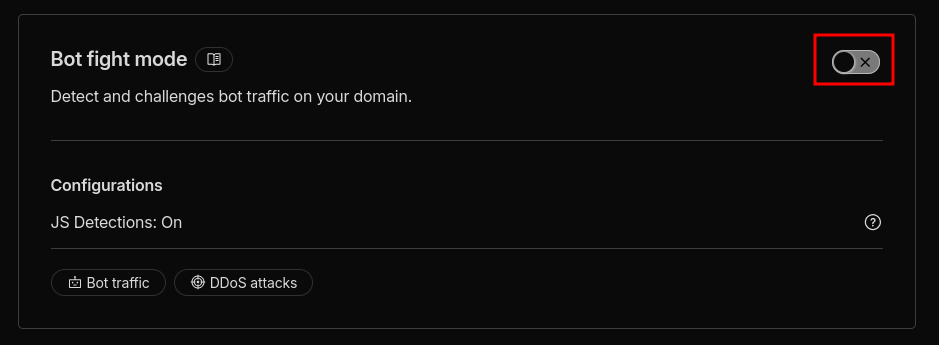
Scroll down and disable “Bot fight mode” if you see it as an option. If it doesn’t appear, that should be okay.
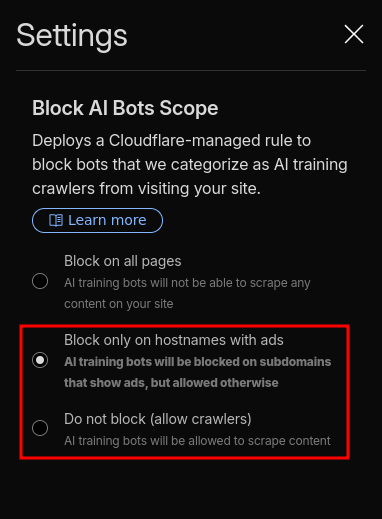
Then, go to “Block AI bots” and select either “Block only on hostnames with ads” or “Do not block (allow crawlers)”. I can already hear you saying “but I don’t want bots to scrape other services on my domain!” and that’s where custom security rules come in.
Go to “Security” > “Security rules” and click “Create rule”. Make sure to select Custom rule!! This is very important.
You can name it whatever you like, but I entered “Crawl Blocking Except For PeerTube”. Make the “When incoming requests match…” and “Then take action…” settings match the following screenshot.
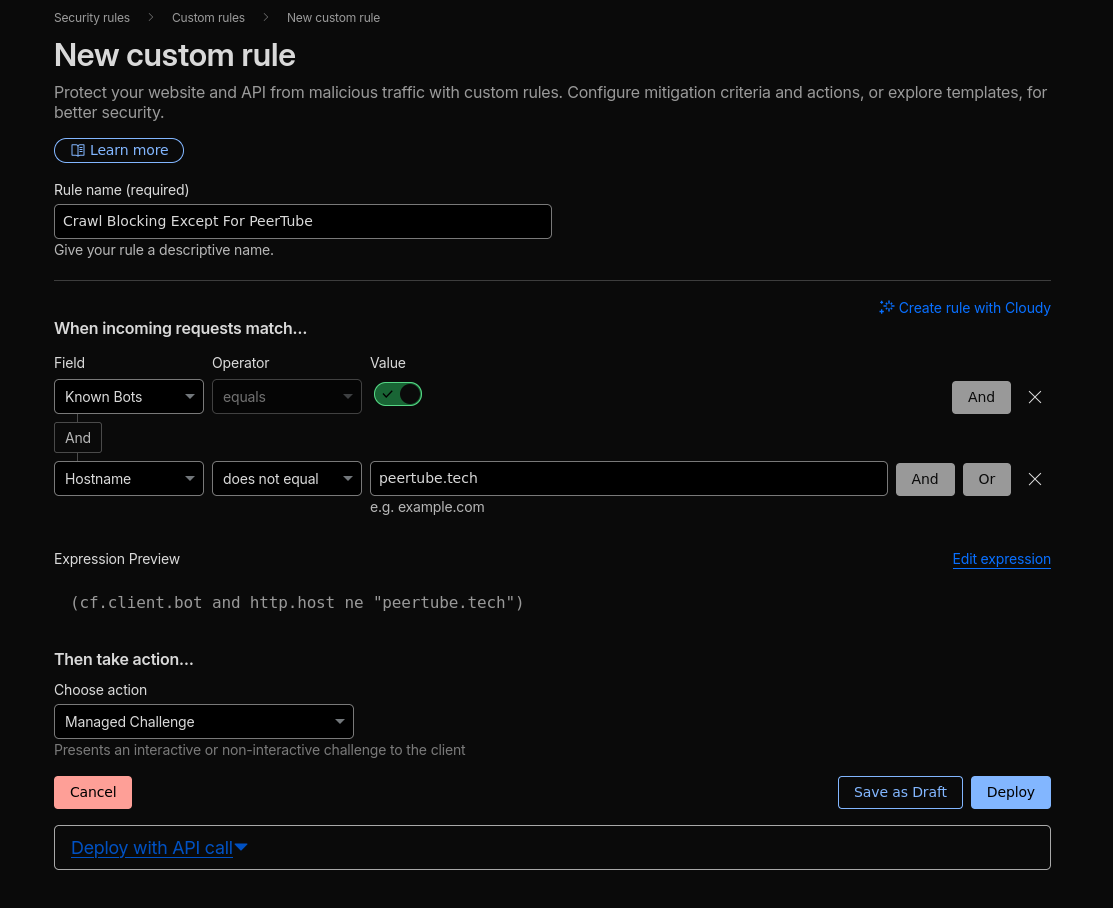
You can also click “Edit expression” and paste the following but you’ll still need to select “Managed Challenge” for the “Then take action…” setting.
(cf.client.bot and http.host ne "YOUR_PEERTUBE_DOMAIN")
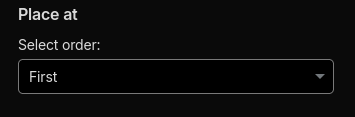
If the “Place at” option is visible, select “First”:
Second rule
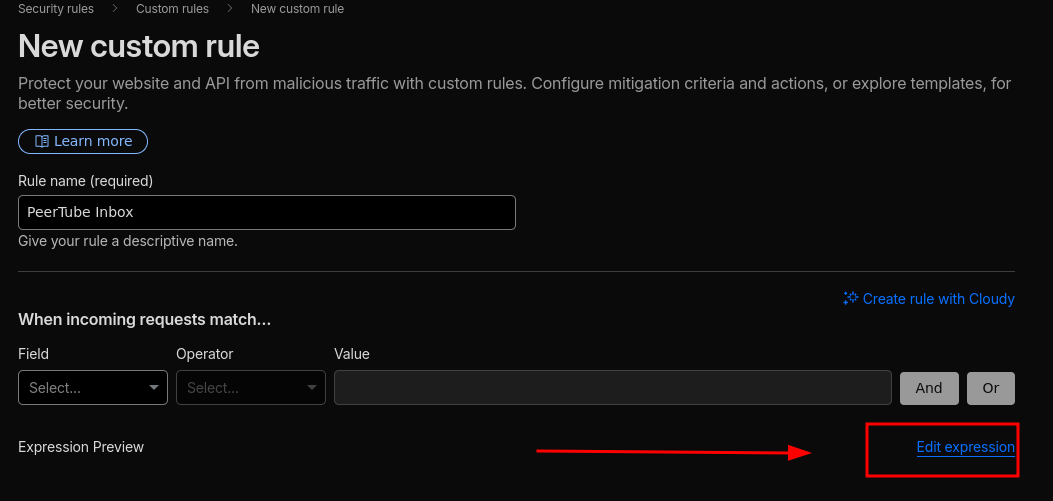
Create another custom rule and title it “PeerTube Inbox” (or whatever you like).
Click “Edit expression” and paste the following:
(http.host eq "YOUR_PEERTUBE_DOMAIN" and http.request.uri.path eq "/inbox" and http.request.method eq "POST")
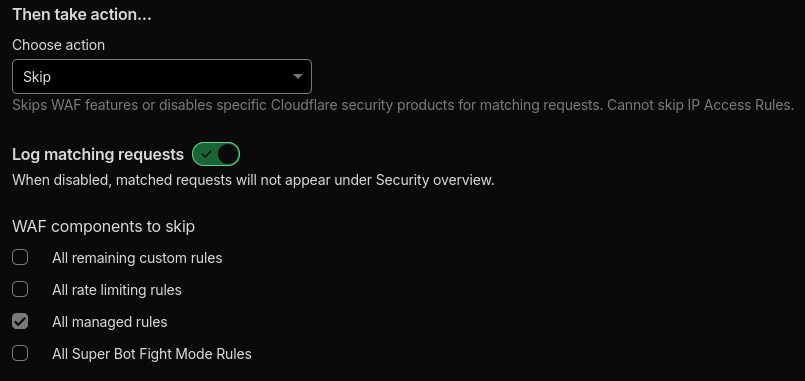
Under “Then take action…” choose the “Skip” action. For the “WAF components to skip”, select “All managed rules”.
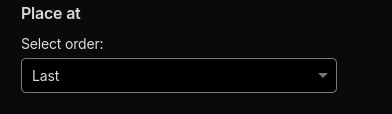
Under “Place at” choose “Last”.
Third rule
The problem with this rule is that, ideally, it would be a “Managed rule” to have finer control over what this logic bypasses. Unfortunately, that requires the Pro plan or higher on Cloudflare. Therefore, I’ve provided two options: the free way and the paid way.
Free way
Create another custom rule and title it “PeerTube” (or whatever you like).
Like with before, click “Edit expression” and paste the following:
(http.host eq "YOUR_PEERTUBE_DOMAIN" and http.request.method eq "POST") or (http.request.method eq "PUT" and http.host eq "YOUR_PEERTUBE_DOMAIN")
Under “Then take action…” choose the “Skip” action. For the “WAF components to skip”, select “All managed rules”.
Under “Place at” choose “Last”.
Note: since this rule and the second rule have the same action, they could theoretically be combined if you want to be a minimalist. They are separated here because this rule is intended to be a “Managed rule” and used with a paid Cloudflare plan which is different to the second rule.
Paid way (use this if you pay for Pro or above)
Create another managed rule and title it “PeerTube” (or whatever you like).
Like with before, click “Edit expression” and paste the following:
(http.host eq "YOUR_PEERTUBE_DOMAIN" and http.request.method eq "POST") or (http.request.method eq "PUT" and http.host eq "YOUR_PEERTUBE_DOMAIN")
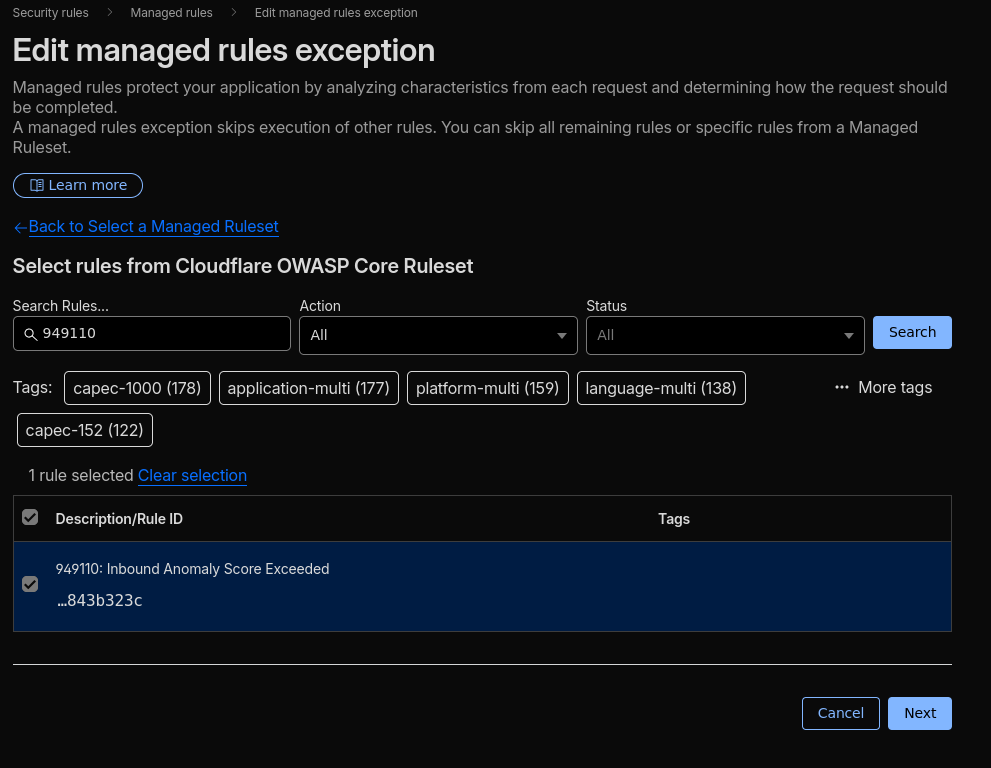
Under “Then…” select “Skip specific rules from a Managed Ruleset”.
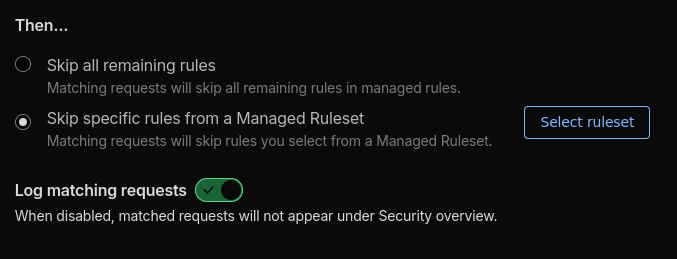
Click on “Select ruleset”, select “Cloudflare OWASP Core Ruleset”, paste “949110” under “Search Rules…” and select “Inbound Anomaly Score Exceeded”.
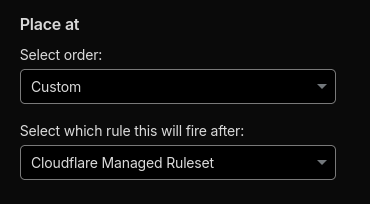
Under “Place at” select the order as “Custom” and make the rule fire after “Cloudflare Managed Ruleset”. If “Custom” isn’t listed, select “First”.
Configuring PeerTube’s object storage
Now that we’ve added our bucket, we need to setup the object storage in the .env file.
Add the following to the .env file.
Where:
- S3_BASE_URL = The
patternyou specified in the worker. - S3_BUCKET = your R2 bucket name
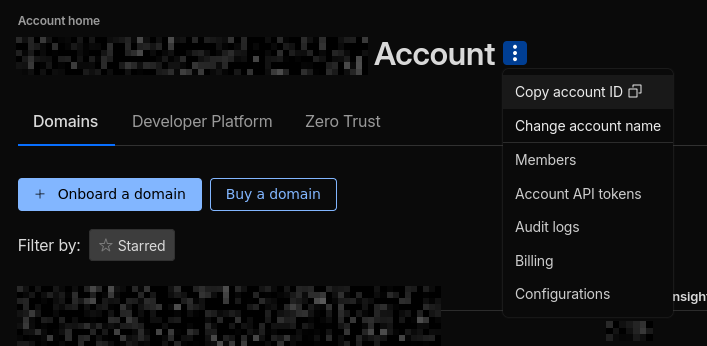
- ACCOUNT_ID = your Cloudflare account ID found on the “Account home” page
To get ACCESS_KEY_ID and SECRET_ACCESS_KEY go to “Storage & databases” > “R2 object storage” > “Overview” and select “Manage” under “Account Details”.
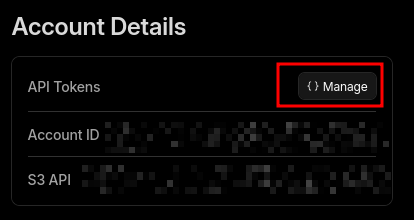
Then click “Create Account API token”. Name it something like “PeerTube access token”.
Select “Object Read & Write” for the permissions.
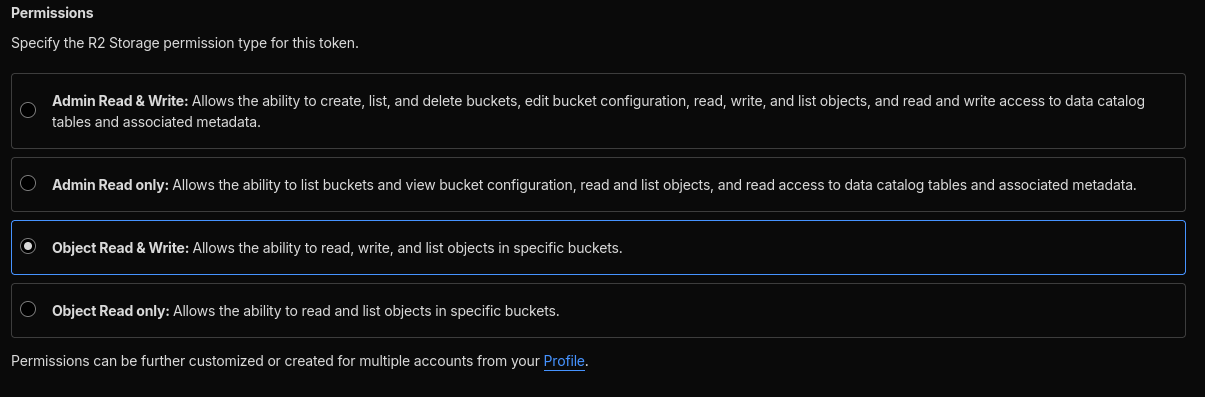
Under “Specify bucket(s)” click “Apply to specific buckets only” and select your bucket.

Leave everything else as the default and click “Create Account API Token”. Your access key ID and secret access key will be shown once. Copy and paste these into their respective variables in .env.
Paste the following configuration into your .env file and substitute all the values you got above into the the following configuration.
S3_BASE_URL='https://storage.peertube.tech'
S3_BUCKET='peertube-tech'

# If you want to enable object storage for PeerTube, set the following variables.
PEERTUBE_OBJECT_STORAGE_ENABLED=true
PEERTUBE_OBJECT_STORAGE_ENDPOINT='ACCOUNT_ID.r2.cloudflarestorage.com'
PEERTUBE_OBJECT_STORAGE_REGION='auto'
PEERTUBE_OBJECT_STORAGE_CREDENTIALS_ACCESS_KEY_ID='ACCESS_KEY_ID'
PEERTUBE_OBJECT_STORAGE_CREDENTIALS_SECRET_ACCESS_KEY='SECRET_ACCESS_KEY'
PEERTUBE_OBJECT_STORAGE_STREAMING_PLAYLISTS_BUCKET_NAME=${S3_BUCKET}
PEERTUBE_OBJECT_STORAGE_STREAMING_PLAYLISTS_PREFIX='streaming-playlists/'
PEERTUBE_OBJECT_STORAGE_STREAMING_PLAYLISTS_BASE_URL=${S3_BASE_URL}
PEERTUBE_OBJECT_STORAGE_WEB_VIDEOS_BUCKET_NAME=${S3_BUCKET}
PEERTUBE_OBJECT_STORAGE_WEB_VIDEOS_PREFIX='web-videos/'
PEERTUBE_OBJECT_STORAGE_WEB_VIDEOS_BASE_URL=${S3_BASE_URL}
PEERTUBE_OBJECT_STORAGE_USER_EXPORTS_BUCKET_NAME=${S3_BUCKET}
PEERTUBE_OBJECT_STORAGE_USER_EXPORTS_PREFIX='user-exports/'
PEERTUBE_OBJECT_STORAGE_USER_EXPORTS_BASE_URL=${S3_BASE_URL}
PEERTUBE_OBJECT_STORAGE_ORIGINAL_VIDEO_FILES_BUCKET_NAME=${S3_BUCKET}
PEERTUBE_OBJECT_STORAGE_ORIGINAL_VIDEO_FILES_PREFIX='original-video-files/'
PEERTUBE_OBJECT_STORAGE_ORIGINAL_VIDEO_FILES_BASE_URL=${S3_BASE_URL}
PEERTUBE_OBJECT_STORAGE_CAPTIONS_BUCKET_NAME=${S3_BUCKET}
PEERTUBE_OBJECT_STORAGE_CAPTIONS_PREFIX='captions/'
PEERTUBE_OBJECT_STORAGE_CAPTIONS_BASE_URL=${S3_BASE_URL}

# Not strictly necessary to my knowledge, but I personally use this
PEERTUBE_OBJECT_STORAGE_MAX_UPLOAD_PART='100000000'
PEERTUBE_OBJECT_STORAGE_MAX_REQUEST_ATTEMPTS='3'

#####################################
### MAKE SURE THESE ARE COMMENTED ###
#####################################

# Comment these variables if your S3 provider does not support object ACL
#PEERTUBE_OBJECT_STORAGE_UPLOAD_ACL_PUBLIC="null"
#PEERTUBE_OBJECT_STORAGE_UPLOAD_ACL_PRIVATE="null"
Conclusion
There you have it! Your very own PeerTube instance hosted on the Cloudflare network. Phew, that was a lot of configuration.
I hope this guide helped you in some way. I wish I had this guide when I was setting up PeerTube with Cloudflare, but unfortunately I had to figure it all out myself. On the plus side, now you have this guide so you don’t have figure this out from scratch.
If you want to see the finished product, head over to https://peertube.tech which is my PeerTube instance open to public registrations.
Have a great rest of your day!